In this preview we are showcasing the new Document Audit Feature and the new Payroll GL Split Posting enhancements!
Introducing the new Document Audit Feature
The Document Audit aims to monitor a document throughout its entire lifecycle in your Sympac system. The main concept is based on the assignment of a unique ID at the beginning of the document’s lifecycle. This ID enables tracking of the document during any changes or conversions (like a Quote that turns into a Customer Order), and other key events.
This new functionality is part of the upcoming August Software Release, take a preview of the features and benefits below!
About each of the Document Audit Functions
Document Snapshots
Document snapshots will occur whenever a document is saved. For example:
Quote
Customer Order
Invoice
Document Events
Also included in the audit will be functionality to record the details of events that occur with/to a document. Here’s some examples:
Customer Order line to TBO
Customer Order line to Purchase Order
API request generating a Customer Order
API request generating a Tax Invoice
Debtor Transaction Enquiry
The Debtor Transaction History Enquiry screen will show a link to Document Audit for any document that has Audit data available.
Customer Documents
The Customer Documents view will show a link to Document Audit for any document that has Audit data available.
Payroll General Ledger Split Posting News!
GL Hierarchy
There is an existing hierarchy for GL postings in place that was slightly flawed but is now fixed!
If employee PAD code has a valid GL code use this code
If employee PAD code has ‘SPLIT’ use the linked GL codes and percentages
If employee PAD code has a blank or zero GL fall back to GL code from the employee details tab
If employee details tab has ‘SPLIT’ use the linked GL codes and percentages
If all above fails uses the GL code from the matching default PAD code
Split GL Code enhancements
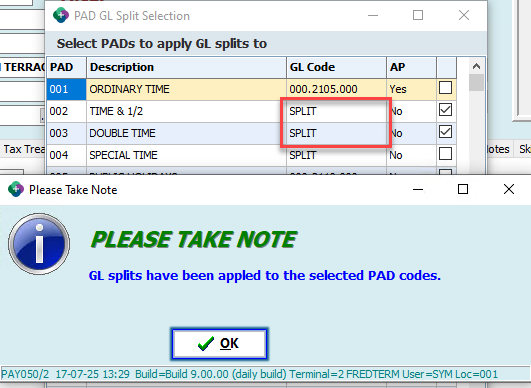
Split GL codes configured on the details tab can now be copied to the PAD codes for the employee.
Click the button on the right of the General Ledger A/C field
Enter required GL accounts and percentages
Click the OK button
4. Select the PAD codes to copy the Splits to.
5. Click the OK button
Alternatively you can key Split GL codes on each PAD code:
Restore original GL codes on all PAD
If a mistake is made where GL splits are copied to all PAD codes you can restore the previously configured GL codes by clicking the Restore Codes button.