

Introducing our new
Calculated Surcharge feature!
What is the Calculated Surcharge?
The Calculated Surcharge feature automatically adds a surcharge line to your POS documents. It is calculated as a percentage of the document value and is fully managed by the system. It recalculates automatically whenever you make changes to the document, ensuring accuracy without manual intervention.
Product Setup
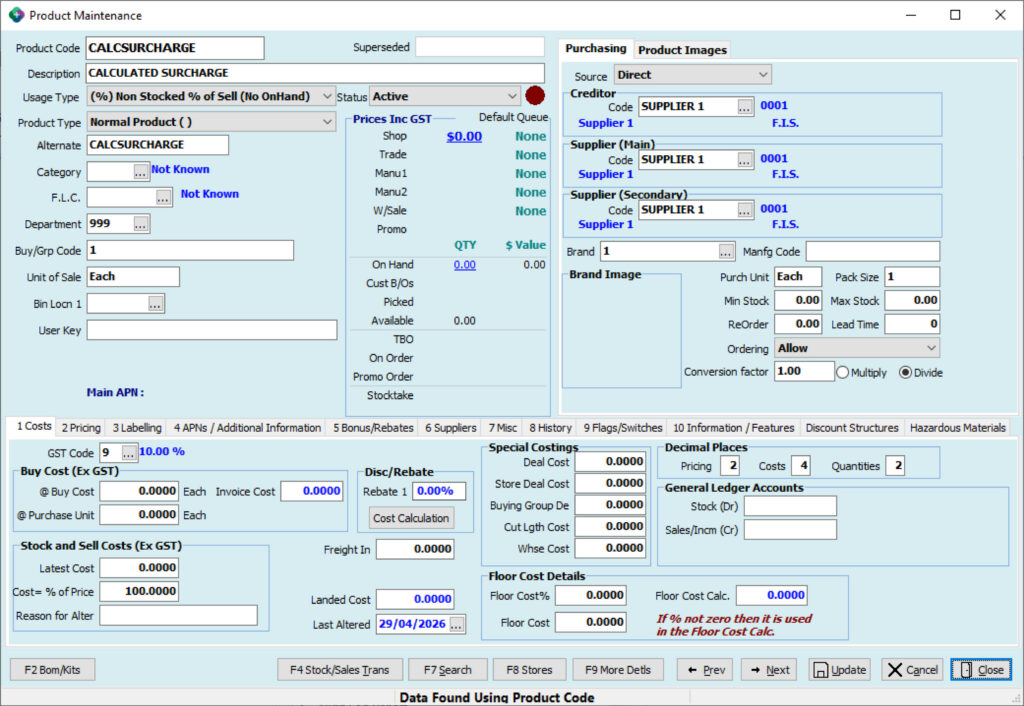
Before enabling the feature, you must create a dedicated product in the Product Master for the surcharge line.
Important
The surcharge product must not be configured as part of contracts, kit products, package products, quantity price breaks, or alternate units of measure. It must exist as a standalone product only.
Each store can have its own surcharge product code, allowing store-specific GL posting.
How the Surcharge is Calculated
The system uses a straightforward formula to determine the surcharge and its associated GST:
- Surcharge (Ex GST) = Surcharge % × Eligible Line Total (Ex GST, after discounts)
- GST on Surcharge = Surcharge (Ex GST) × Weighted Average GST Rate
Understanding the “Eligible Line Total”
The eligible line total includes all product lines on the document except:
- The surcharge line itself
- Products in excluded departments or FLCs
- Lines with zero or negative quantity
GST Handling
GST on the surcharge is calculated proportionally based on the GST mix of the underlying product lines. If all products have 10% GST, the surcharge gets 10% GST. If the document has a mix, the surcharge GST is weighted proportionally.
Surcharge Behaviour in the POS Grid
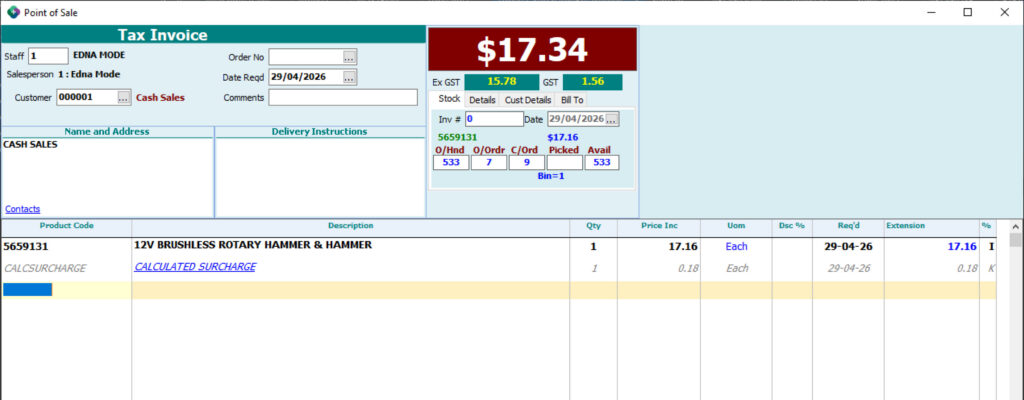
The surcharge line appears as the last row on the document, styled in grey italic text to distinguish it from regular products. Key behaviours include:
- Calculation Breakdown: The description appears as a blue underlined link. Click it to view a detailed breakdown of how the surcharge was calculated.
- Non-Editable: The line cannot be edited directly, but it can be deleted. If removed, the system won’t re-add it for that session unless the surcharge product code is entered again.
- Exclusion from Global Discounts: The surcharge line is not affected by document-wide discount operations.
- Adjustment Notes: Surcharges are never added automatically to refunds or credits to prevent silent increases. They must be entered manually if required.
Viewing the Calculation Breakdown
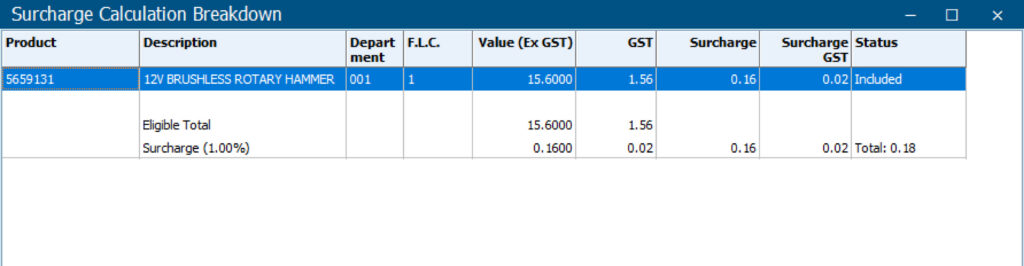
You can view a detailed breakdown of how the surcharge was calculated by clicking on the surcharge line’s description in the document grid. The description appears as a blue underlined link.
Clicking it opens the Surcharge Calculation Breakdown window, which shows:
- Every product line on the document with its value (ex GST) and GST amount
- Each line’s department and FLC
- Whether each line is Included or Excluded (with the reason – department or FLC)
- The calculated surcharge contribution for each included line
- The GST on each line’s surcharge contribution
- Totals showing the eligible base, total surcharge, and total surcharge GST
Setup Guide
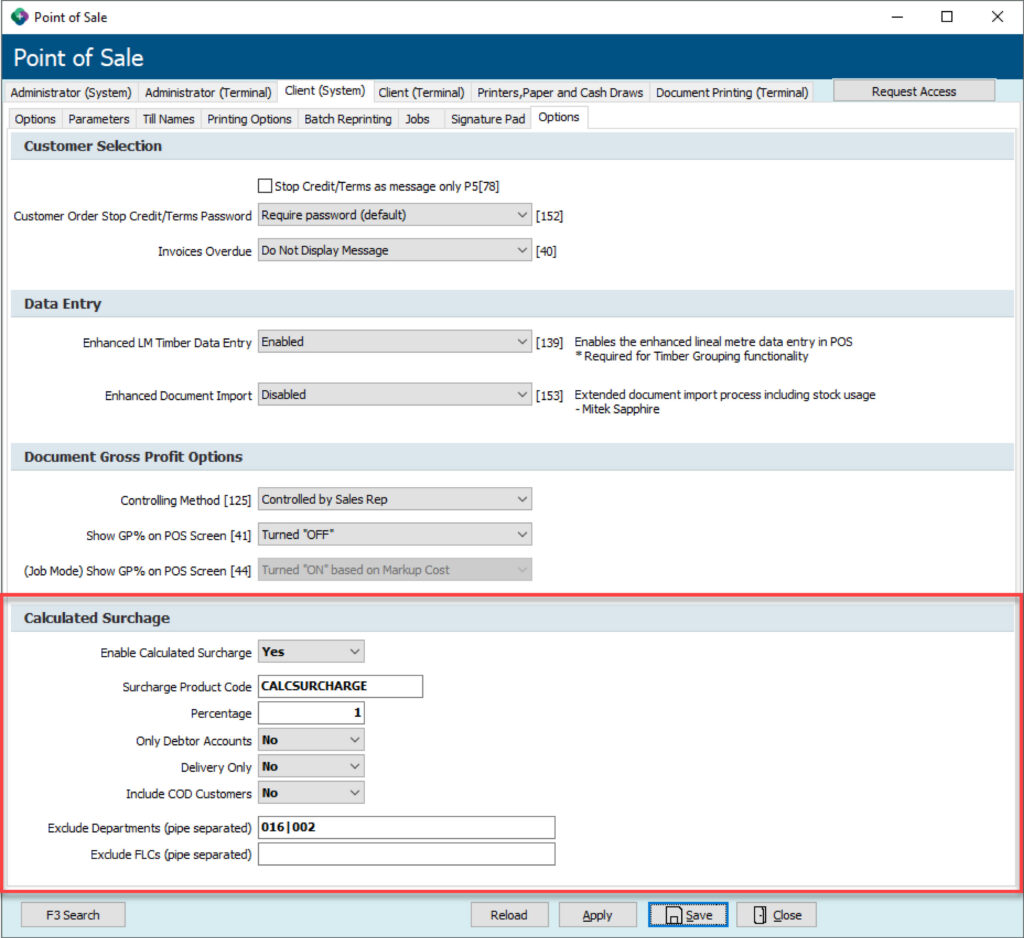
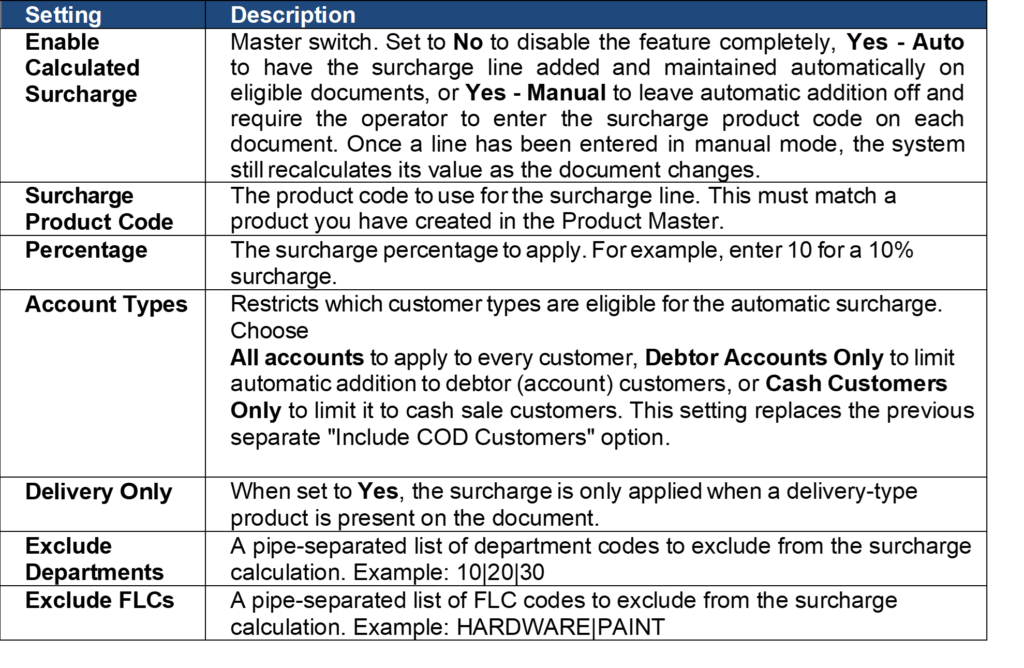
To enable this feature, navigate to POS Setup → Client (System) → Options tab. Here you will find the Calculated Surcharge group box.
Configuration Settings
What you need to do
Read the information below that supports this release.
Download the PDF version below for future reference if needed.
Once the update is downloaded and installed on your PC, you will need to restart your computer to ensure that all changes take effect.
We apologise for any inconvenience this may cause, however rest assured that the restart will only take a few minutes.
We’re here to help
If you need any assistance or have any questions please call the Sympac Help Desk on (03) 5649 6200.
Our Client Services Team are available from 7am to 8pm EST to assist you.